 Kids Block
How to Block Apps on iPhone for Kids: 4 Ways That Hold
The most reliable way to block apps on a child’s iPhone is Apple’s own Screen Time, locked with a passcode your child does not know. It can put a daily limit on a single app or on a whole category such as Games, and it can stop new apps being installed at all. If what you want is “games off now, back on after homework”, a blocker app such as Kids Block does the same job with one tap. The Face ID app lock that arrived in iOS 18 is not a parental control: the phone’s own passcode opens it, and most children know that passcode.
Which way should you use?
| Method | What it stops | Weak spot | Good for |
|---|---|---|---|
| Screen Time App Limits | An app or category once its daily time is used up | Takes a while to set up, and a known passcode undoes it | A daily budget for games or social apps |
| Blocking App Store installs | New apps being downloaded | Does nothing about apps already on the phone | Stopping surprise downloads |
| Require Face ID (iOS 18 and later) | Other people opening an app on your own phone | The device passcode opens it | Your own privacy, not a child’s phone |
| A one tap blocker (Kids Block) | Chosen apps or whole categories, until you unblock | Works only on the device it is installed on | Homework time, bedtime, “off until I say so” |
Most families end up combining two of these: something that stops new downloads, plus something that controls the apps already installed.
How do I block apps with Screen Time?
You can set this up on your child’s iPhone itself, or from your own iPhone if your child is in your Family Sharing group. On iOS 26 and earlier:
- Open Settings, then Screen Time. If you are working from your own phone, tap your child’s name under Family.
- Tap App Limits, then Add Limit.
- Choose a category such as Games, or tap a category to pick single apps inside it, then tap Next.
- Set the time allowed. The shortest limit is one minute, after which the app stays blocked for the rest of the day.
- Make sure Block at End of Limit is on, then add the limit.
- Back on the Screen Time screen, tap Lock Screen Time Settings and choose a passcode that is different from the phone’s own passcode.
The last step is the one that matters. Without a separate Screen Time passcode, a child can simply choose to ignore the limit when it runs out, or change the settings.
iOS 27 changed these screens. Apple redesigned Screen Time in iOS 27. Per app caps became Time Allowances, a daily budget you share out across categories, and the controls moved to Settings, then Family, then your child’s name. The new version only switches on once every device in your Family Sharing group runs a version 27 release, so many families will keep seeing the older screens for a while.
How do I stop my child downloading new apps?
On iOS 26 and earlier:
- Open Settings, then Screen Time, then Content & Privacy Restrictions, and turn the switch at the top on.
- Tap iTunes & App Store Purchases.
- Set Installing Apps to Don’t Allow.
The App Store disappears from the Home Screen, so new games cannot be installed. On the same screen you can also set Deleting Apps and In-app Purchases to Don’t Allow.
On iOS 27 the same switch lives under Settings, then Family, then your child’s name, then Apps & Websites, then App Store, where Installing Apps can be set to Blocked.
If your child has their own Apple Account in your Family Sharing group, Ask to Buy is the softer option: every download sends you a request, and nothing installs until you approve it.
Can I lock an app with Face ID?
Since iOS 18 you can touch and hold an app icon and choose Require Face ID (Touch ID on models without Face ID). The app then asks for a face before it opens. The feature was designed for privacy on your own phone, and if Face ID does not recognise the person, the iPhone passcode opens the app instead. On a child’s phone it only stops a child who does not know the passcode, which is rarely the case.
How do I block apps in one tap?
Screen Time is good at “how long per day”. It is clumsy at “not now, maybe later”, which is what most evenings actually need. Kids Block is built for that. It uses the same Apple Screen Time framework, so the block is enforced by iOS itself rather than by the app staying open.
- Install Kids Block on your child’s iPhone or iPad and tap Grant Access when it asks for Screen Time permission.
- Tap Select and pick apps, or whole categories such as Games and Social. A blocked category also covers games your child installs later.
- Tap Block Apps. Opening a blocked app now shows a shield screen instead of the app.
- Under Unlock Protection, choose PIN Code, so unblocking needs a code only you know.
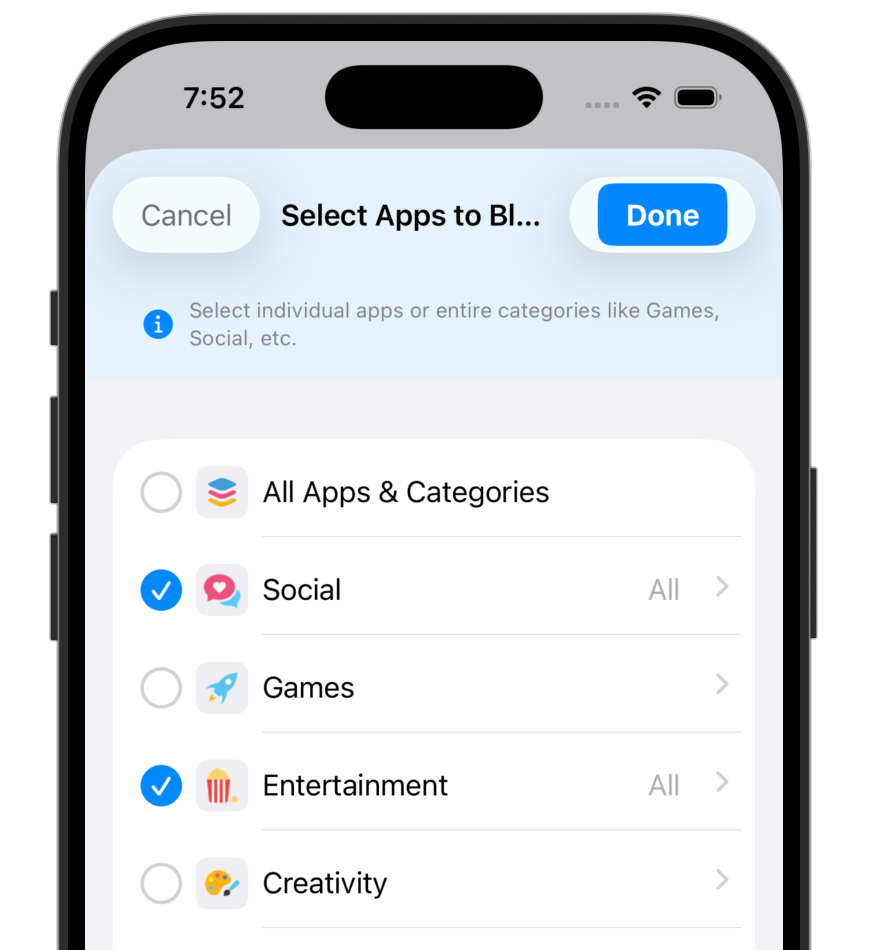
Unblocking is the same button. Or tap Set Auto-Unblock and choose 20 minutes, 30 minutes, 1 hour, 2 hours, Until morning or a custom time, and the apps come back on their own when the time is up. The setup guide walks through every screen.
Does blocking the app block the website too?
No. Blocking the TikTok or YouTube app does not stop your child opening the same service in Safari or Chrome. Screen Time’s web content settings let you list sites to block. Kids Block can also block specific websites in every browser on iOS 17 or later, and blocking a site covers its subdomains, so blocking youtube.com also covers m.youtube.com.
Does this work the same way on iPad?
Yes. Every method above works on iPad with the same names in Settings. Kids Block runs on iPhone and iPad with iOS or iPadOS 16 or later; website blocking needs version 17 or later.